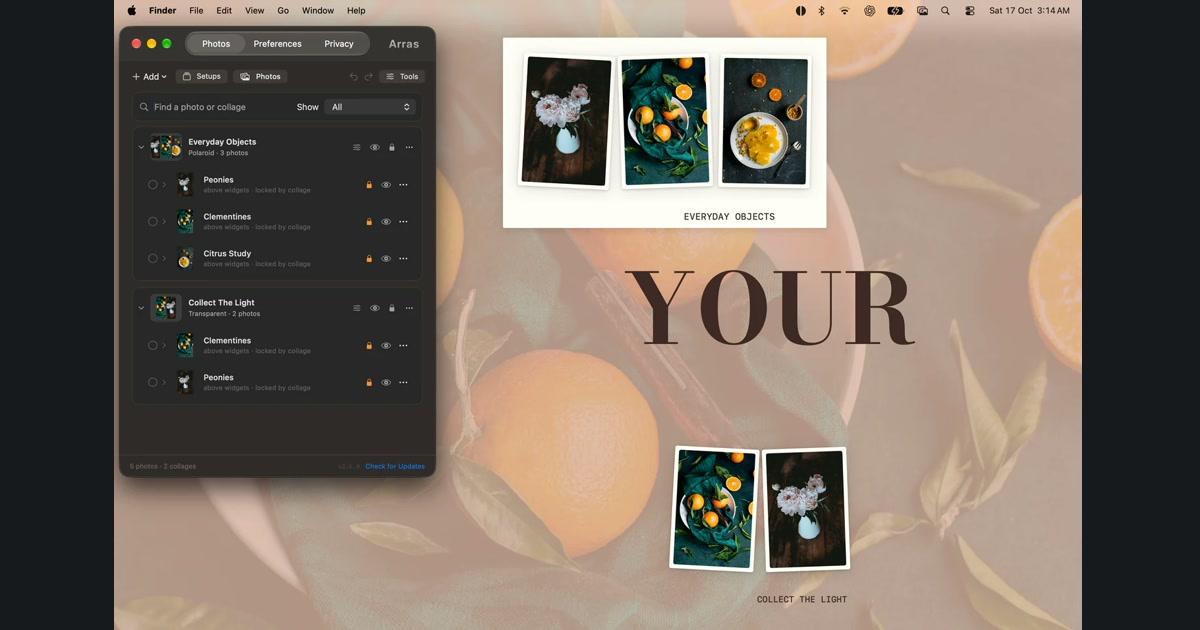
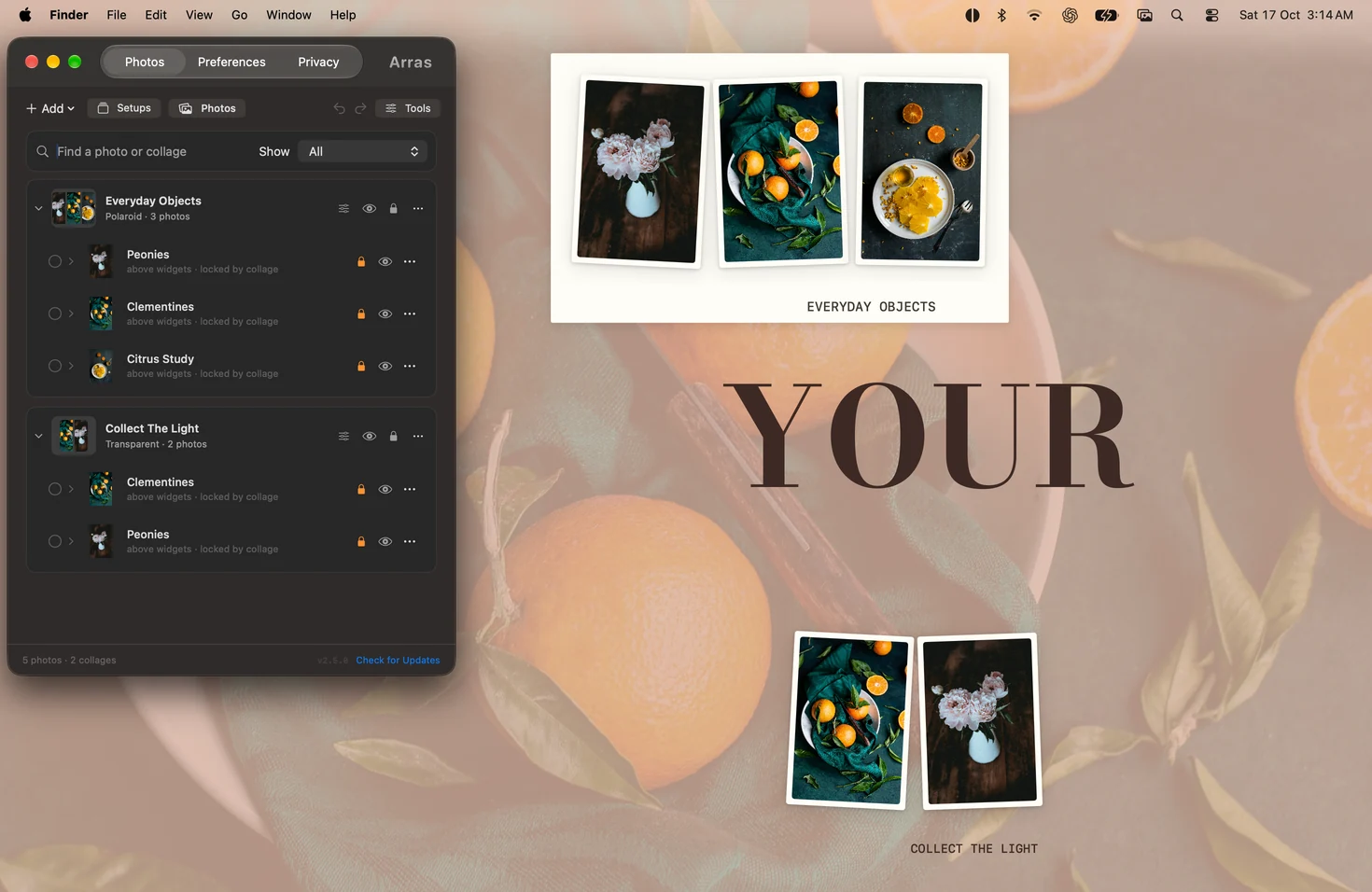
A collage holds your pictures together without flattening them into one image. Glass, paper or an open canvas. A caption, wherever it belongs.
Drag the background to move the group. Move or resize a photo on its own; the boundary grows and shrinks with it. Add and remove members, give each its own look, then lock the arrangement when it feels right.
One arrangement. Individual photos. Paper and transparent collage styles.↗
02 / Slideshows & layers
A changing view. A steady reference.
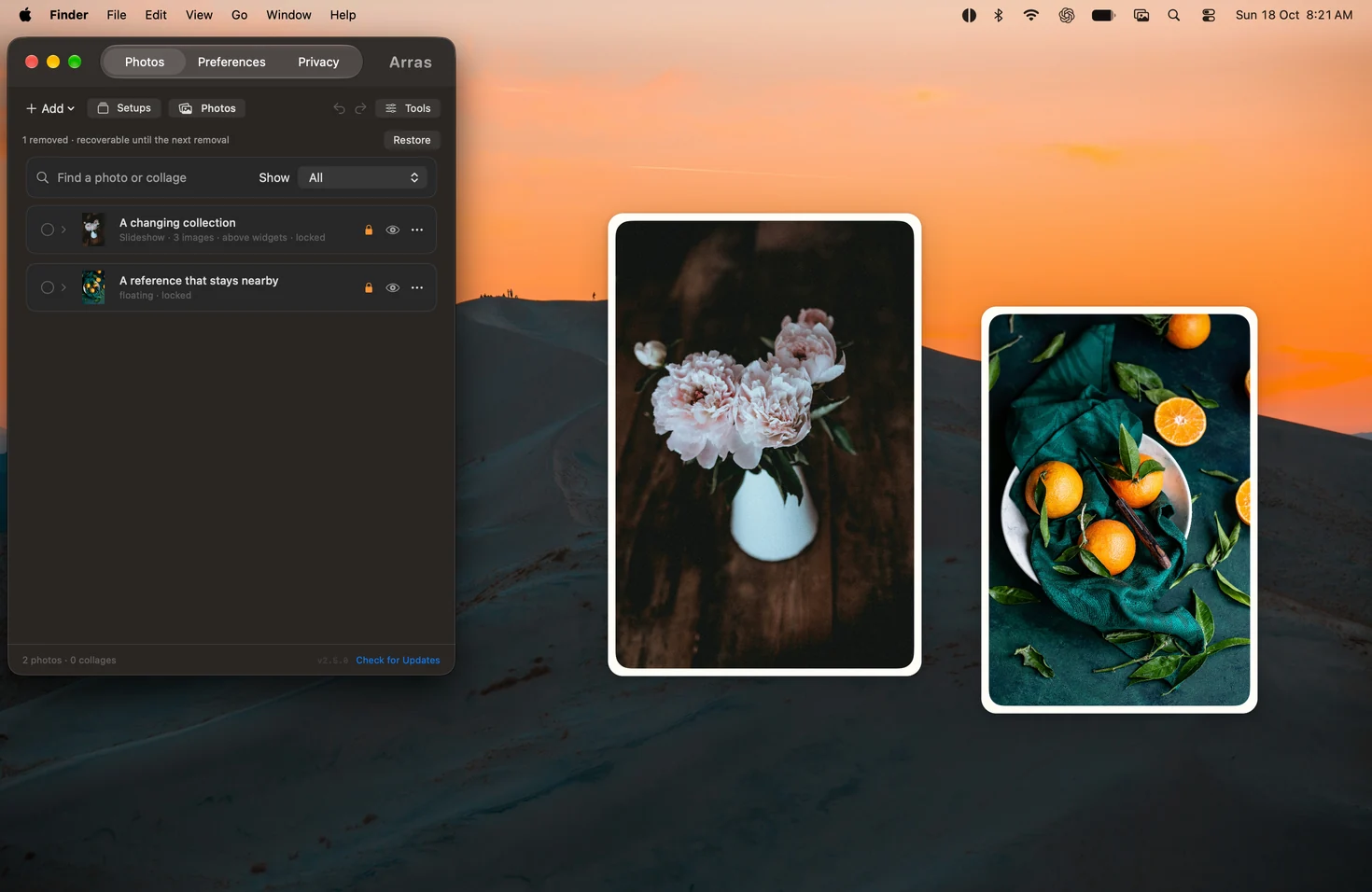
Let one widget cycle through a collection while another stays exactly where you need it. Your desktop can be a moodboard and a useful place to work.
A three-photo slideshow beside a separate Floating reference.↗
Let the picture change
Your Space slideshow, in rotation.
Advance on double-click or on a timer. Add, remove and reorder images in Edit Slideshow. Dynamic sizing keeps each picture’s proportions; Fixed sizing deliberately fills one frame. Link a Photos album or Finder folder to keep a collection current.
Choose its place
Pin a photo on your Mac desktop.
Keep a picture on the desktop or set Depth to Floating for a reference above app windows. Choose Behind Icons or Above Widgets for other placements. A collage controls depth and Space pinning for its whole group; standalone settings return when a photo leaves it.
Behind Icons / On Desktop / Above Widgets / Floating
03 / Make it yours
A frame of mind. Not a fixed grid.
Tall portraits. Wide panoramas. A single photo, uncropped and at its true aspect ratio.
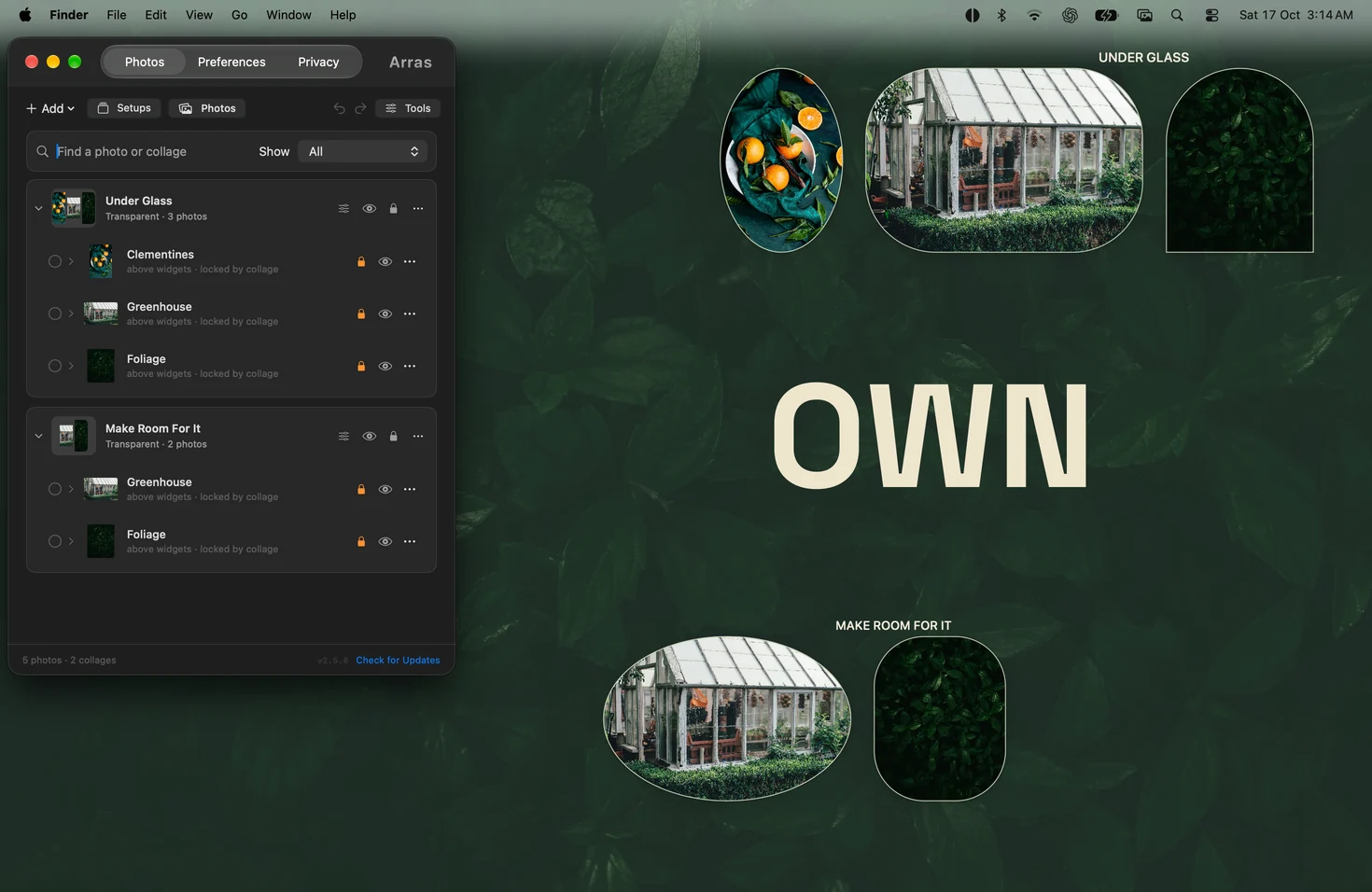
Start with Polaroid or Gallery, then make the mat, border, shape, shadow and tilt your own. Copy Appearance carries the style to another photo without replacing its content or position.
Independent photo shapes, frames and placement. One desktop that feels like you.↗
Motion, when you want it.
Transparent PNGs, animated GIF/APNG images and muted local video widgets fit into the same desktop. Hidden media pauses; your still photos stay still.
A reference, with context.
Reference Tools adds non-destructive crop, rotation, flips, grayscale, a note and a source link. Screenshot and PDF commands can be enabled in Preferences → Menu bar.
Save named setups before experimenting. Undo moves, resizing and membership changes, recover the latest removal, or export a portable .arras backup with stored media.
Your media, close at hand.
Import from Finder, Photos, the clipboard or drag-and-drop. Managed local copies keep saved photos available when the original source is disconnected.
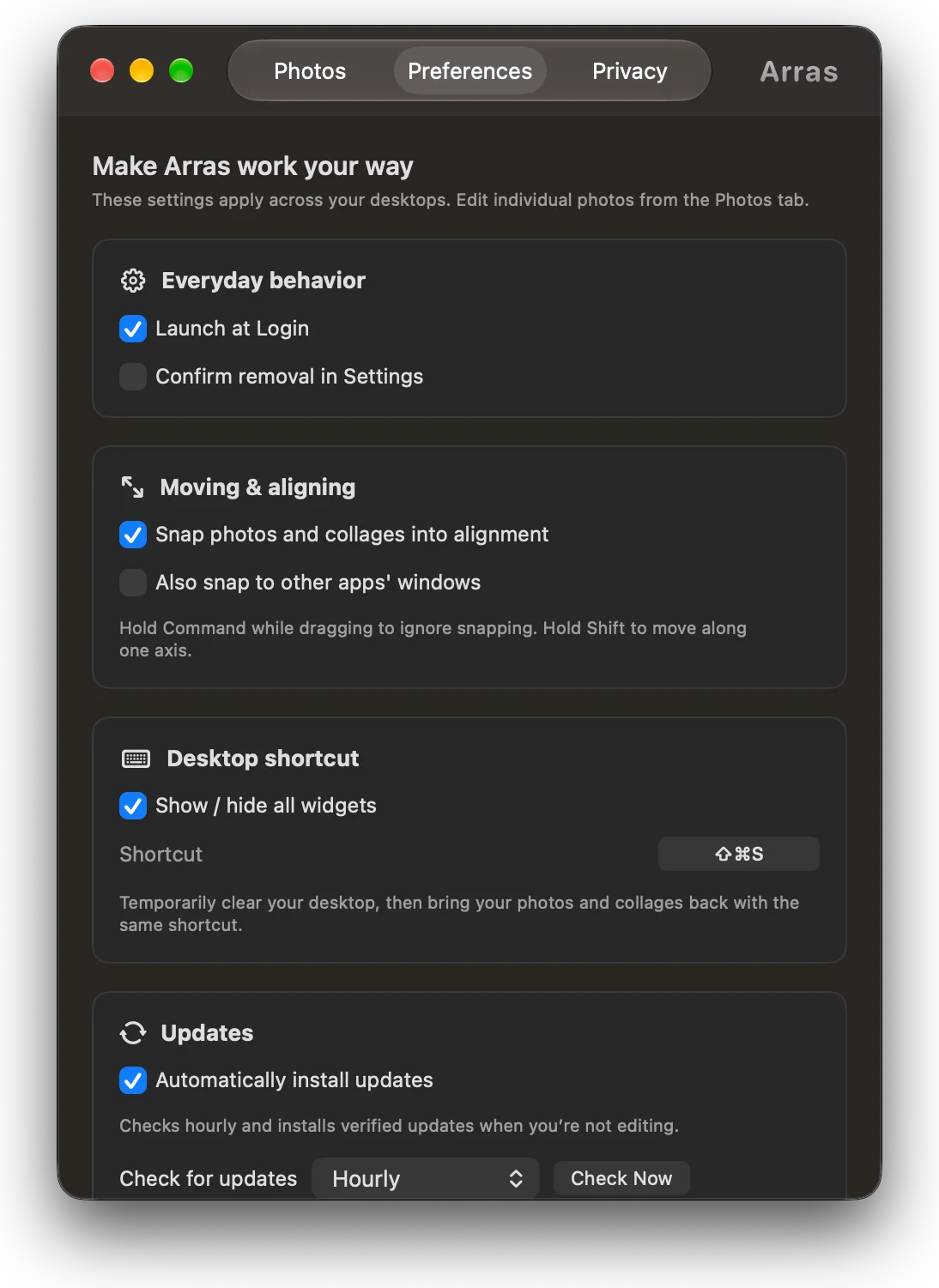
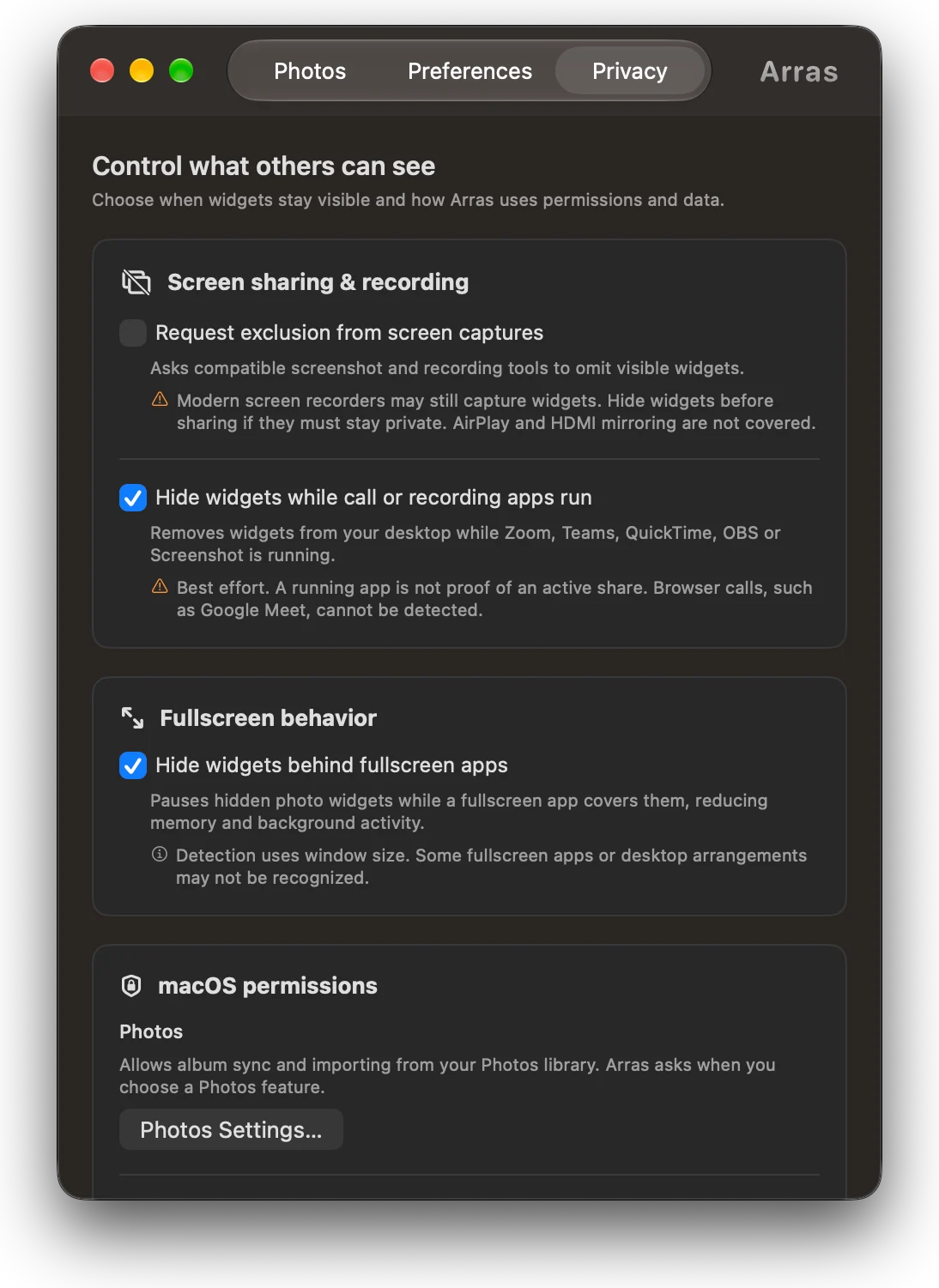
Set snapping, shortcuts and update checks in Preferences. Use Privacy to choose when widgets hide, review permissions and understand the limited statistics. Your photo content stays on your Mac.
Preferences
Snapping, shortcuts and verified updates, together.
Privacy
Clear controls. Honest limits. Your photos stay local.
Buying Arras Widgets supports my work on Arras. Get Apple-managed installation and updates, a sandboxed app and no Arras usage statistics. The free, open-source direct download is here too. Your photos stay on your Mac.
Arras Widgets · US$4.99 One-time purchase · Local prices may vary.
Get Arras Widgets, then open it on your Mac. Its controls live in the menu bar. Apple manages your purchase and updates. This edition is sandboxed and sends no Arras usage statistics.
One purchase, for the family. With Family Sharing enabled, up to six family members can use Arras Widgets. How Family Sharing works ↗
Install the free direct download
Download the Arras DMG using this website’s button or the official yashashwi-s/Arras GitHub Release.
Open the DMG and drag Arras into Applications.
Open Arras from Applications. Its controls live in your menu bar.
The current Arras build is notarized by Apple. macOS may ask you to confirm opening an app downloaded from the internet.
How do I add a single photo widget to my Mac desktop?+
Choose Add → Add Photos or Videos, paste a copied image, drag its file onto the menu bar icon, or select an individual picture from Photos. Arras displays the exact photo you choose; you do not need to create an Apple Photos album just for one widget. Try an Example adds an editable scene with bundled sample images.
Your desktop photo keeps its true aspect ratio and its own position and size. Arras lives in the menu bar. Ordinary photo widgets do not require Screen Recording or Accessibility permission.
The direct download of Arras is free and open source under the MIT License. GitHub hosts its source and official release files. Arras Widgets on the Mac App Store is a separate paid edition with Apple-managed updates. Neither edition needs an Arras account or subscription.
Can I build a collage and still move or resize each photo?+
Yes. Choose Add → Create Collage, then use Edit Collage to add or remove photos, choose a background and spacing, and add captions or labels. Drag the background to move the group. Hover a photo’s corner to resize that photo; the boundary refits as it grows or shrinks.
Photos remain independently editable and can be dragged out. Depth and Space pinning are controlled by the collage. Individual standalone values are preserved for detaching. Remove Collage, Keep Photos removes the group while retaining its photos.
Why buy Arras Widgets if the direct download is free?+
Buying Arras Widgets supports independent development of Arras. It is a one-time purchase, with installation and updates managed by Apple. This edition is sandboxed and sends no Arras usage statistics. With Family Sharing enabled, up to six family members can use it.
The core photo widgets, editable collages, slideshows and saved setups are also available in the free, open-source direct download. Choose the Store edition for its purchase and update experience and to support the maker; you do not need to buy it to keep using the free edition.