By Yashashwi Singhania, maker of Arras. Sources checked .
At a glance
- Choose the image
- ArrasImport the exact photo or start a slideshow with a Photos album.
- Apple Photos widgetChoose a Photos album from the widget’s settings.
- Size and shape
- ArrasResize an individual widget and keep its original proportions in Dynamic mode.
- Apple Photos widgetChoose one of the sizes offered by the widget gallery.
- Placement
- ArrasArrange independent windows on the desktop or float a reference above apps.
- Apple Photos widgetAdd the widget to the desktop or Notification Center.
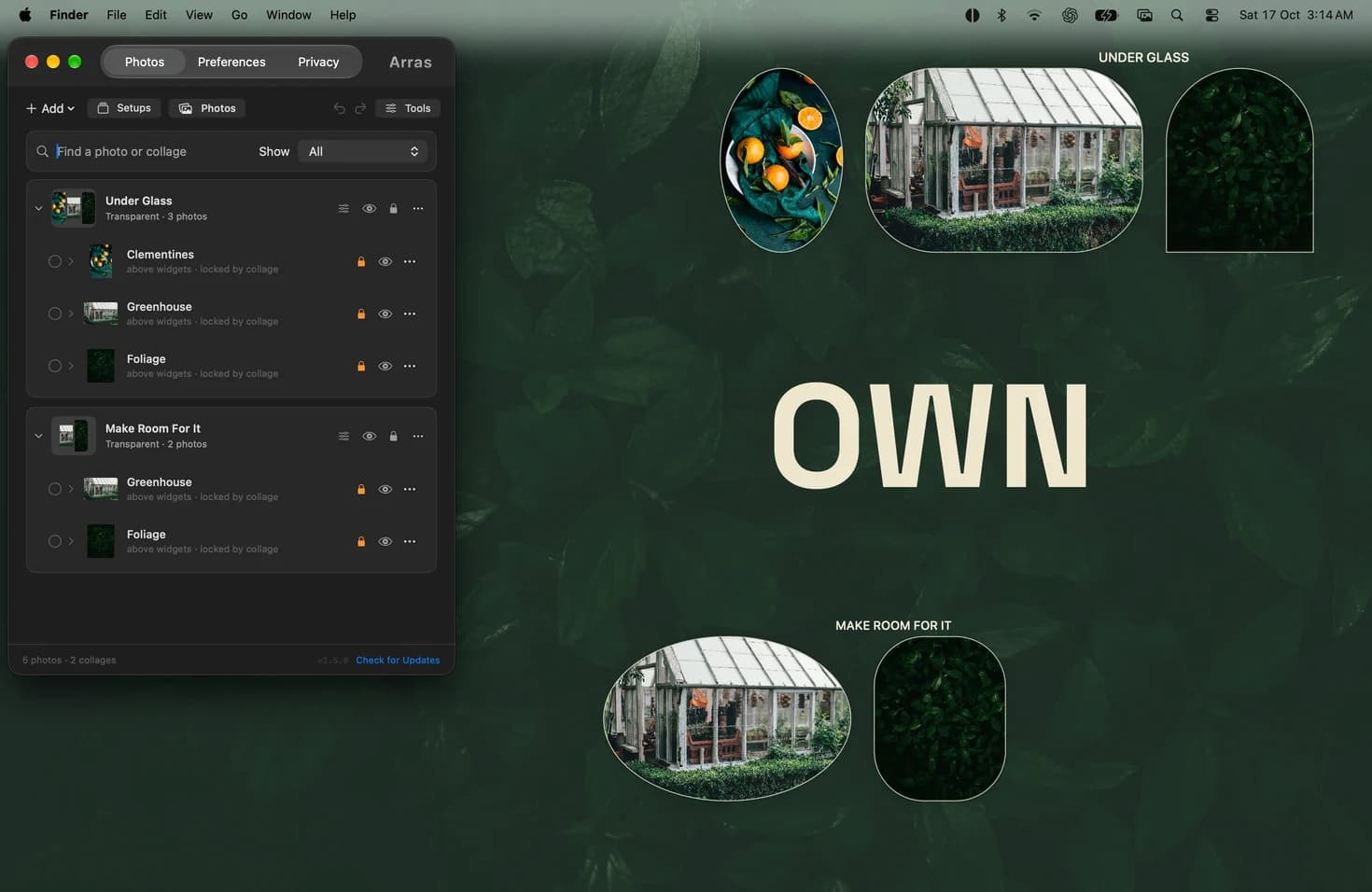
One photograph, the way you framed it
A portrait of a person and a wide photograph of a room ask for different amounts of space. In Arras, add each directly from Finder or Photos and give each a frame that follows the image. If you want the portrait near your files and the room photo next to an open app, set the second widget to Floating.
When the built-in widget is enough
If you already keep your favorites in an Apple Photos album and want them among your Calendar and Weather widgets, start with the Photos widget. It is included with macOS and uses the same widget gallery and editing controls as other system widgets.
A two-photo setup to try
Start with a tall photo and a panorama. In Arras, choose Add Photos or Videos, then drag and resize each image. Leave them on the desktop or set one to Floating. For a rotating slideshow, keep Dynamic sizing to preserve each image’s proportions or choose Fixed to fill a consistent frame.
Put a photo on your Mac desktop without cropping →
Sources
Apple’s guide to desktop widgets ↗
More comparisons
Arras vs Smart Photo Widget for Mac →
Arras vs WidgetWall for Mac desktop widgets →
Arras vs PureRef for floating reference images →