By Yashashwi Singhania, maker of Arras. Sources checked .
At a glance
- Select and frame
- ArrasChoose an exact file and preserve its proportions with Dynamic sizing.
- Smart Photo WidgetAutomatically frames photos for the selected widget size.
- Build a rotation
- ArrasLink Finder folders or Photos albums, choose timing and reorder images.
- Smart Photo WidgetAutomatically rotates a collection and offers options for skipping unwanted photos.
- Add visual context
- ArrasStyle the frame, group pictures in an editable collage and add captions.
- Smart Photo WidgetOffers picture frames and optional date, time and photo information overlays.
When an album should do the work
Cromulent Labs built Smart Photo Widget around a convenient routine. Pick a collection, let it frame and rotate your photos, and use filters to skip photos such as screenshots or blurry images. Its Mac, iPhone and iPad availability can matter if you want a similar widget across devices.
When each photo should stay in its own shape
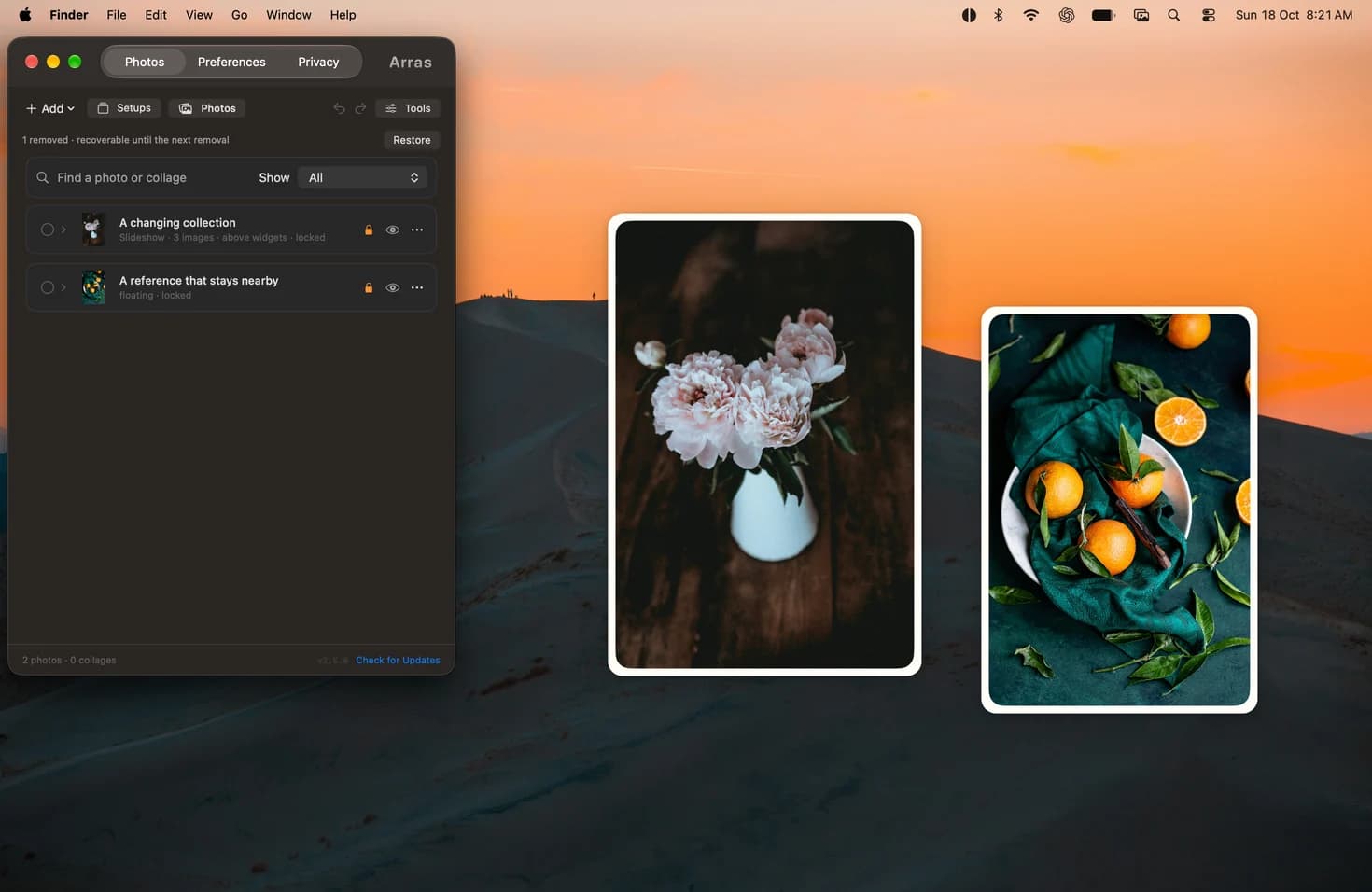
Choose Arras for an uncropped panorama, a portrait in a particular corner or a slideshow you want to compose by hand. Keep one picture fixed while another rotates. The two windows can have separate shapes and layers, so your slideshow can sit on the desktop while your reference stays above a working window.
A setup for albums and individual photos
Start with a linked Finder folder or Photos album for the changing widget. Set the sizing to Dynamic, then add a standalone photo for the image you always want to see. If you prefer the desktop to stay visually still, choose on-click advancement.
Set up uncropped photo widgets →
Sources
More comparisons
Arras vs Apple’s Photos widget on Mac →
Arras vs WidgetWall for Mac desktop widgets →
Arras vs PureRef for floating reference images →