By Yashashwi Singhania, maker of Arras. Sources checked .
At a glance
- Working surface
- ArrasUse independent desktop widgets or group related references in an editable collage.
- PureRefCollect, organize and navigate references on a dedicated canvas.
- Above your work
- ArrasSet a widget or collage to Floating while other photos remain on the desktop.
- PureRefOffers Always on Top and a documented free-floating mode.
- Platforms
- ArrasMac, with a free direct edition and an optional Mac App Store edition.
- PureRefMac, Windows and Linux.
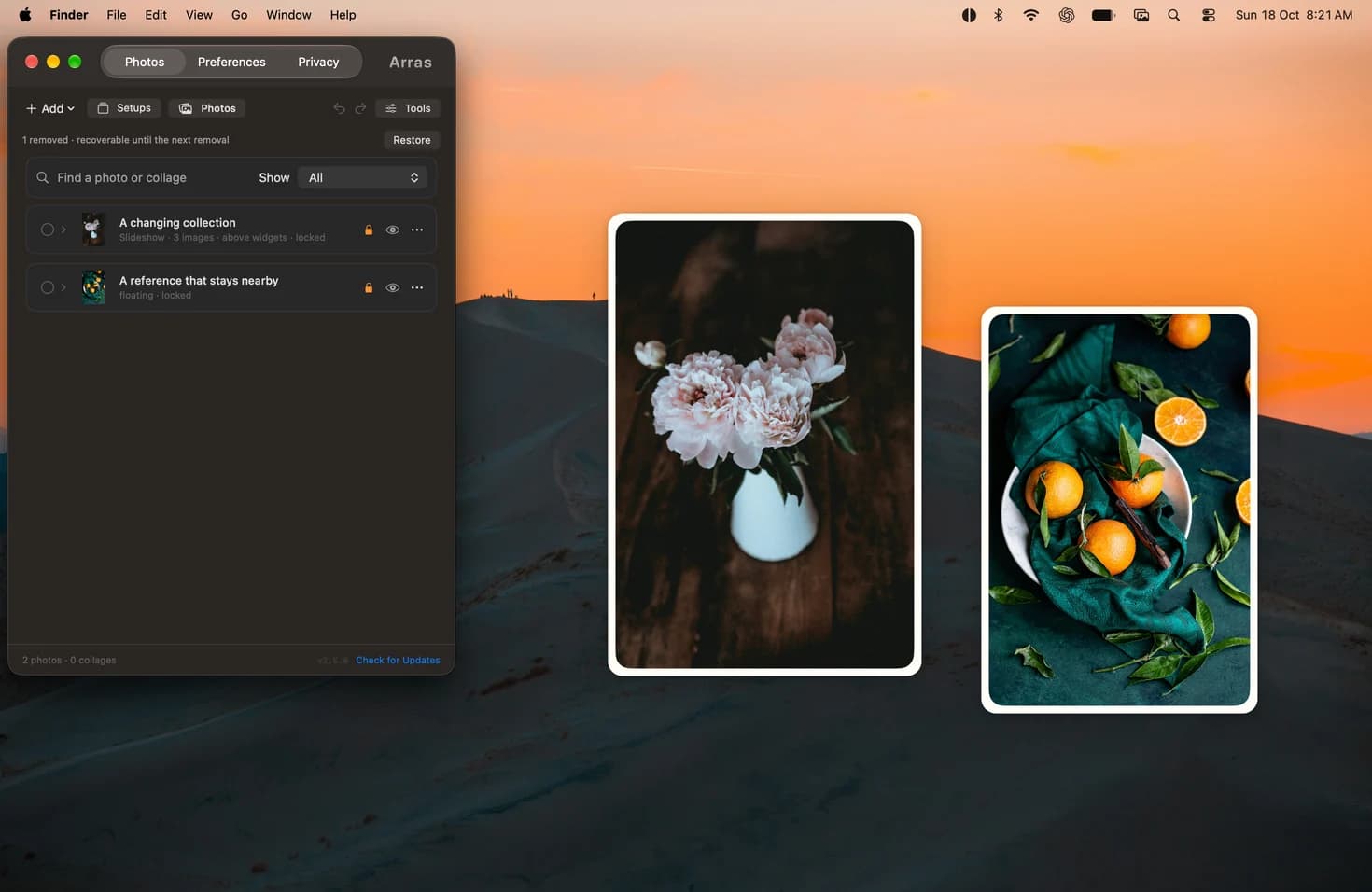
Keep a few references within reach
A palette, a sketch and a crop of your current brief often work best as small windows next to the work itself. In Arras, set each to Floating, give it a note or source link, and keep it where you want it. The rest of your desktop can keep its photos or slideshows at another layer.
When a dedicated board fits better
PureRef is a natural fit when you want a large collection of references that you can pan and zoom through, organize on one canvas, or open on another operating system. Its handbook also documents floating windows and opacity, so both apps can keep a reference visible while you work.
Try an everyday reference setup
Add two images in Arras. Leave the first on the desktop and set the second to Floating. Enable the Screenshot or PDF command in Preferences if your reference is a region or page. Use Reference Tools for a crop, flip or note, then save the layout if you want it again tomorrow.
Pin floating reference images on your Mac →
Sources
More comparisons
Arras vs Apple’s Photos widget on Mac →
Arras vs Smart Photo Widget for Mac →
Arras vs WidgetWall for Mac desktop widgets →