By Yashashwi Singhania, maker of Arras. Sources checked .
At a glance
- Photo source
- ArrasAdd a single photo, a Finder folder or a Photos album.
- Photo Widget by Sindre SorhusCreate a widget for a single picture, a slideshow or a Photos album.
- Layout
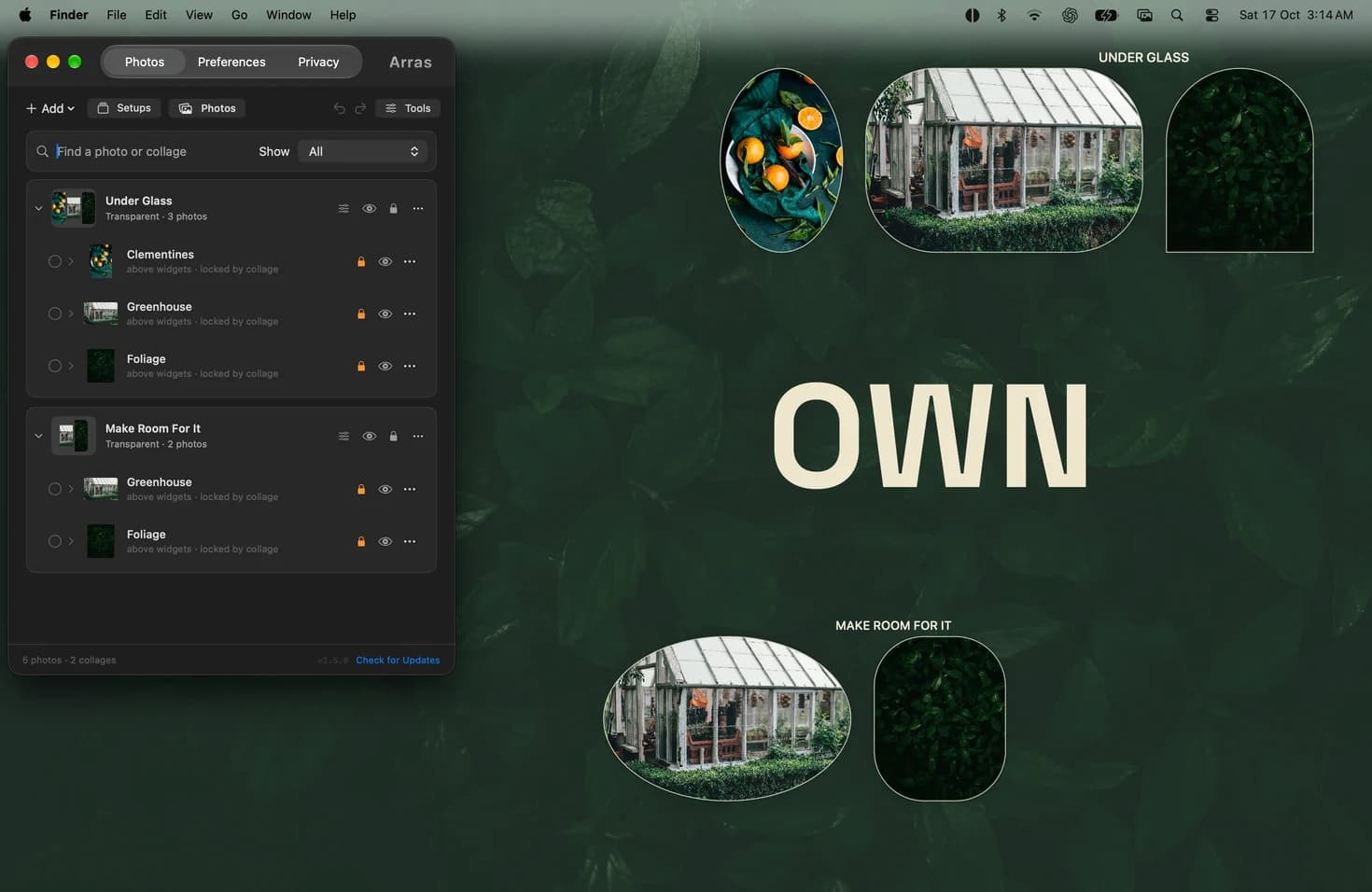
- ArrasSize and place photos independently, then group them if they should move together.
- Photo Widget by Sindre SorhusAdd photo widgets through the system’s widget gallery.
- Platforms
- ArrasRuns on Apple Silicon and Intel Macs with macOS 14 or later.
- Photo Widget by Sindre SorhusAvailable on macOS, iOS and visionOS. The Mac app requires Apple Silicon.
Which kind of photo widget fits your desktop?
Photo Widget is a good fit if you want a picture among the widgets you already use or if you want the same app on your iPhone. For a desktop with a tall portrait beside a wide photograph, Arras gives each picture its own dimensions and position.
How to arrange photos as a group
In Arras, add the photos you want to keep together and drag one onto the other to start a collage. Place a caption near the picture it describes. Move the collage by its background, then adjust one member if the layout needs a little more space.
If your desktop is usually covered by other apps
Start with a single photo and choose the Floating layer. This keeps the image available above your work and lets you retain another photo in the desktop layer. If you just want an album visible when you reveal the desktop, either app can make sense.
Make an editable Mac desktop collage →
Sources
More comparisons
Arras vs Apple’s Photos widget on Mac →
Arras vs Smart Photo Widget for Mac →
Arras vs WidgetWall for Mac desktop widgets →