By Yashashwi Singhania, maker of Arras · Reviewed · Arras 2.5.0
Which widget apps should you use?
Choose widgets for what you want to see: a calendar for the day ahead, weather for the next outing, and a few photos that make the space your own. Arras handles the photo part: freely placed photo widgets, editable collages and slideshows. Use it alongside the widgets already on your Mac.
| What you want | Where to start |
|---|---|
| A background for the whole desktop | Wallpaper in macOS System Settings |
| Calendar, weather and other information | The macOS widget gallery and apps that provide those widgets |
| Photos you can place, frame and group yourself | Arras photo widgets and editable collages |
To add a macOS widget, Control-click the desktop, choose Edit Widgets, then click or drag a widget from the gallery. Apple explains the available widget controls.
Arras uses its own desktop photo windows. Add your photos through Arras in the menu bar; they do not appear as an Arras item in Apple's widget gallery.
Start with a wallpaper and a small palette.
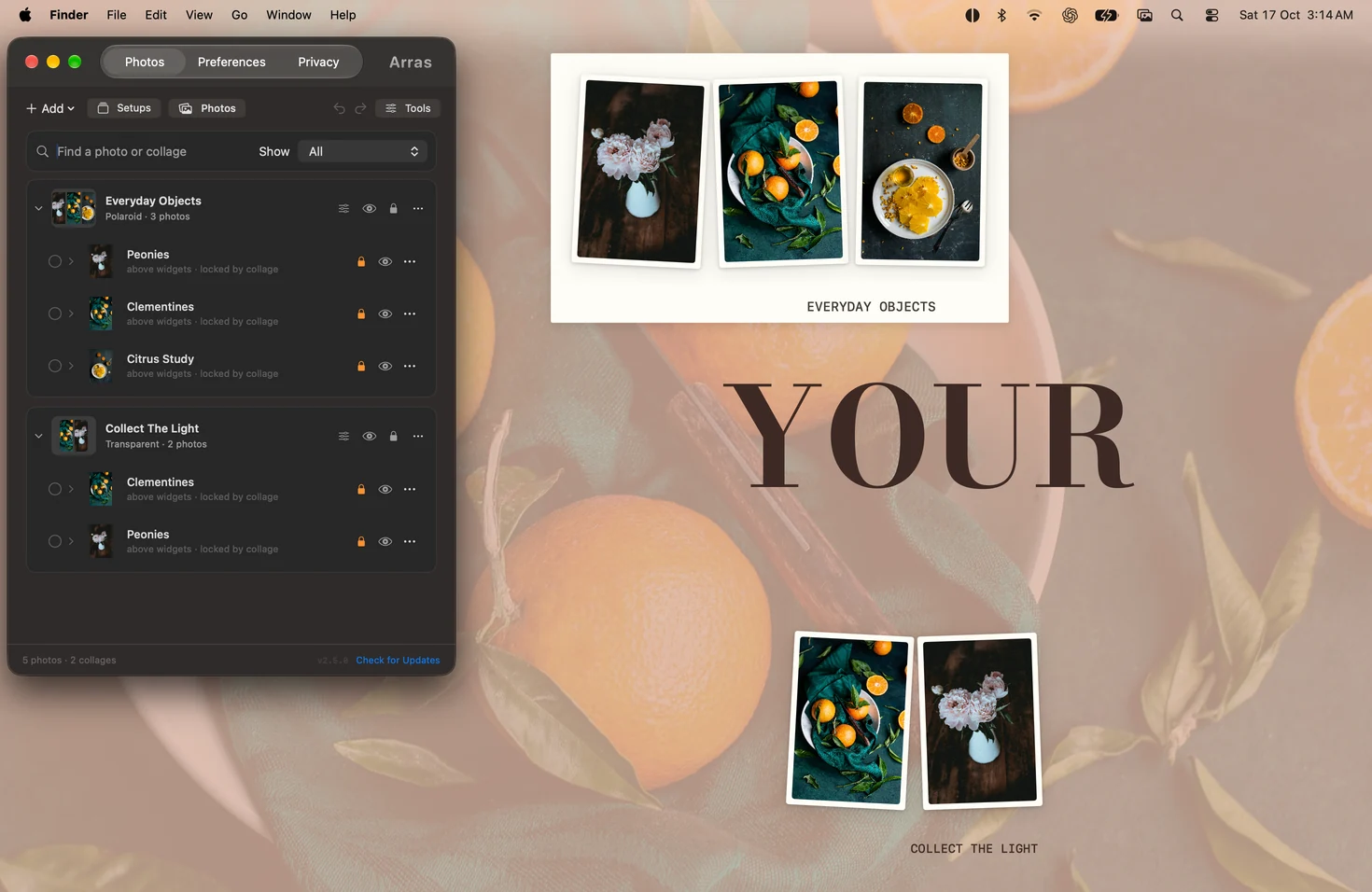
Pick the wallpaper first, then choose two or three photos that share a color with it. Warm stone, paper and greenery work together in the examples below. Keep a quiet area for your app windows and leave the Dock and any frequently used desktop files easy to reach.
Change your background in System Settings → Wallpaper. You can use an Apple wallpaper or your own image. Apple's wallpaper guide covers both.
Give the photos a place to belong.
In Arras, choose Add → Create Collage, or start with Add → Try an Example. A collage gives a group of pictures one background while each photo remains independently movable and resizable.
Start with one larger image and two smaller companions. Align their edges and repeat the gap between them. Drag the collage background to move the arrangement; resize a member from a corner to change its emphasis. The boundary grows and shrinks as its photos change.
Use a caption for a place, a date or a short phrase. Place it in a clear part of the composition so it remains readable. Lock the arrangement once its placement feels right.
Repeat one style, then vary the shapes.
Choose a frame, mat and shadow that suit the wallpaper. Polaroid and Gallery are starting points; Copy Appearance carries a style to another photo while keeping its image and position. Repeating those details lets a tall portrait and a wide landscape belong in the same setup.
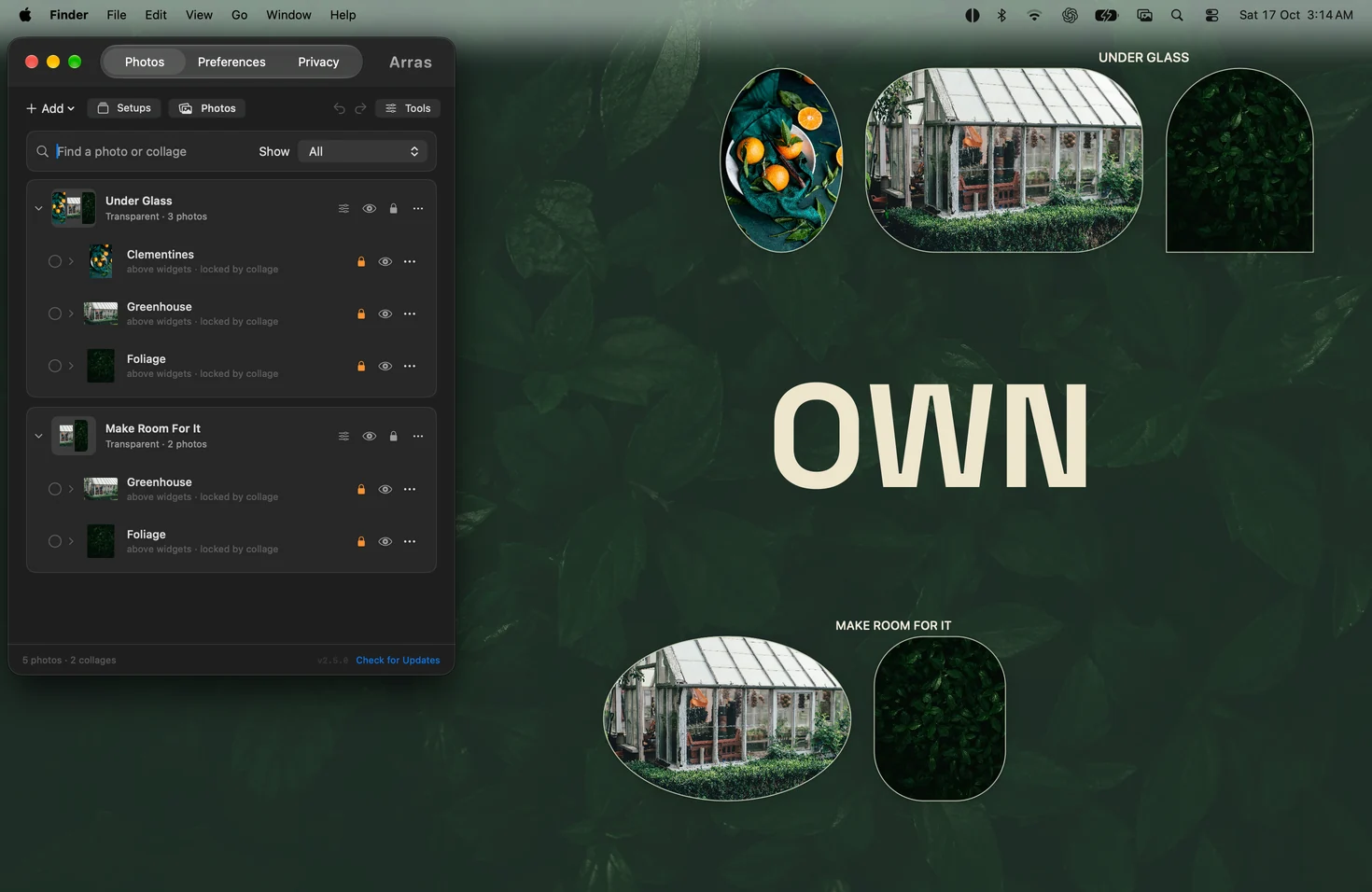
Keep the ordinary photo sizing when you want to preserve the whole image. Transparent PNGs can add a cutout or a small graphic. A deliberate tilt or unusual shape works best where it has room.
Pin a photo on your Mac desktop.
Keep a picture nearby while you work, whether it is a photo, a visual reference or a screenshot. To keep it above other app windows:
- In Arras, choose Add → Add Photos or Videos, then select your image.
- Drag the photo into place and resize it from a corner.
- In Settings → Photos, expand its row, open More options and set Depth to Floating.
Arras has four depth settings: Behind Icons, On Desktop, Above Widgets and Floating. Choose On Desktop to keep the photo at desktop level, or Above Widgets to sit over the system widgets. To float an entire collage, open Edit Collage, set Depth to Floating and choose Apply. Its photos and captions share that depth.
To keep a standalone photo on just your current desktop Space, enable Pin to this Space in More options. Space pinning controls which desktop shows it; Depth controls what it sits above.
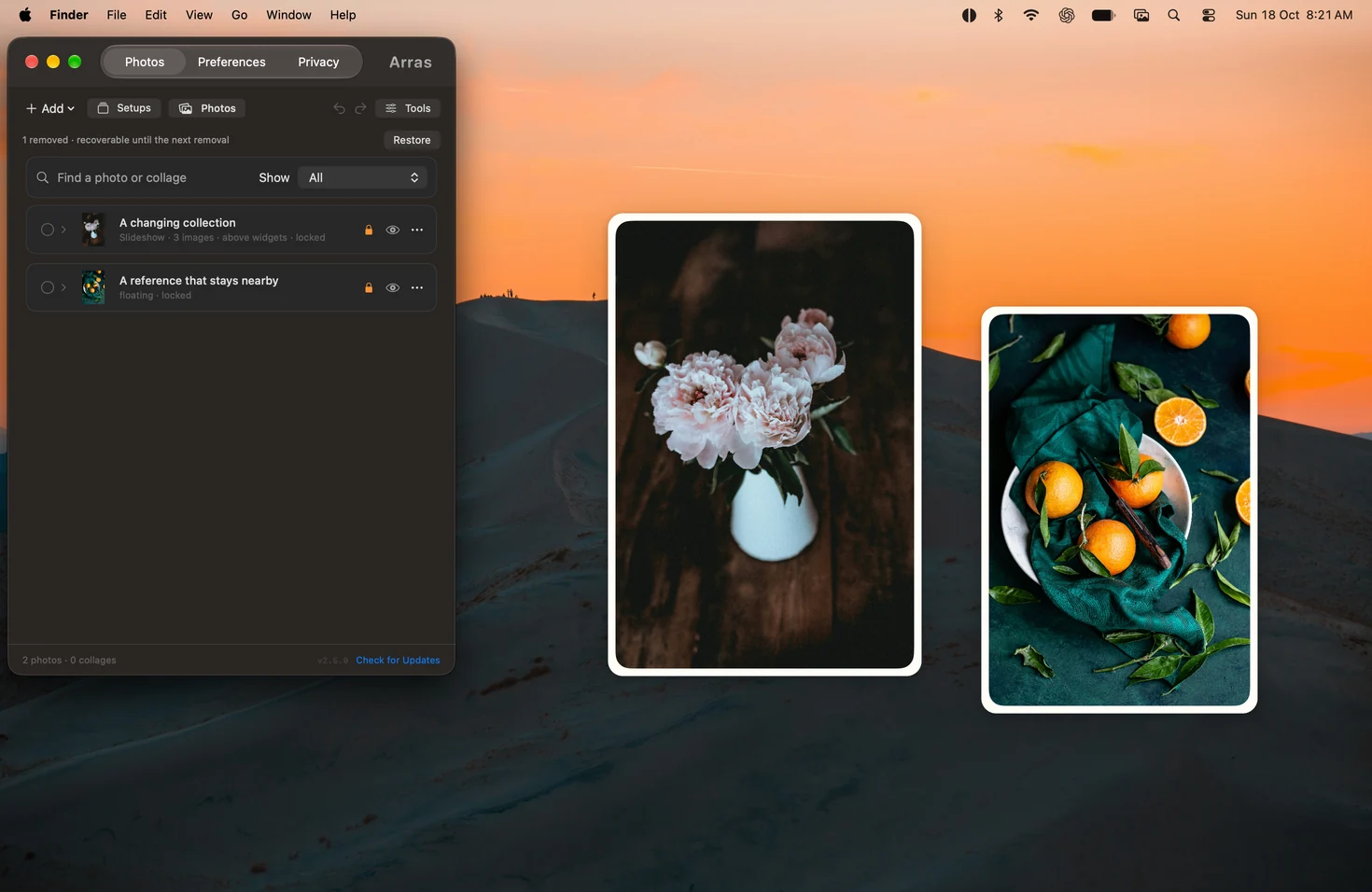
For changing photos, use a Space slideshow and choose its order and interval in Edit Slideshow. Dynamic sizing keeps each photo's proportions; Fixed sizing fills one frame and can crop. A Photos album or Finder folder can supply the collection.
Before showing your screen to others, review Privacy's screen-sharing controls and their limits. Some recording apps can capture visible widgets, and browser meetings are not automatically detected.
Save the setup before changing it.
Save your arrangement in Setups, then experiment with another palette or layout. Named setups let you keep a work reference, a personal photo wall and a quieter desktop ready to switch between. Export a .arras backup when you want a portable copy with its stored media.
A useful final check: can you read the calendar, reach the files you use and open an app without rearranging the whole desktop? Keep the parts you enjoy and adjust anything that gets in your way.
Make your own desktop.
Arras runs on macOS 14.0 or later, on Intel and Apple Silicon Macs. The free, open-source direct download and the paid Arras Widgets edition on the Mac App Store both include photo widgets, editable collages, slideshows and saved setups.
Setup instructions and questions · Edition differences and support
Steps checked against the published Arras feature documentation. Screenshots show the app running on a Mac with sample artwork. This guide is written by Arras's maker.