By Yashashwi Singhania, the maker of Arras. Updated .
Build a group you can keep editing
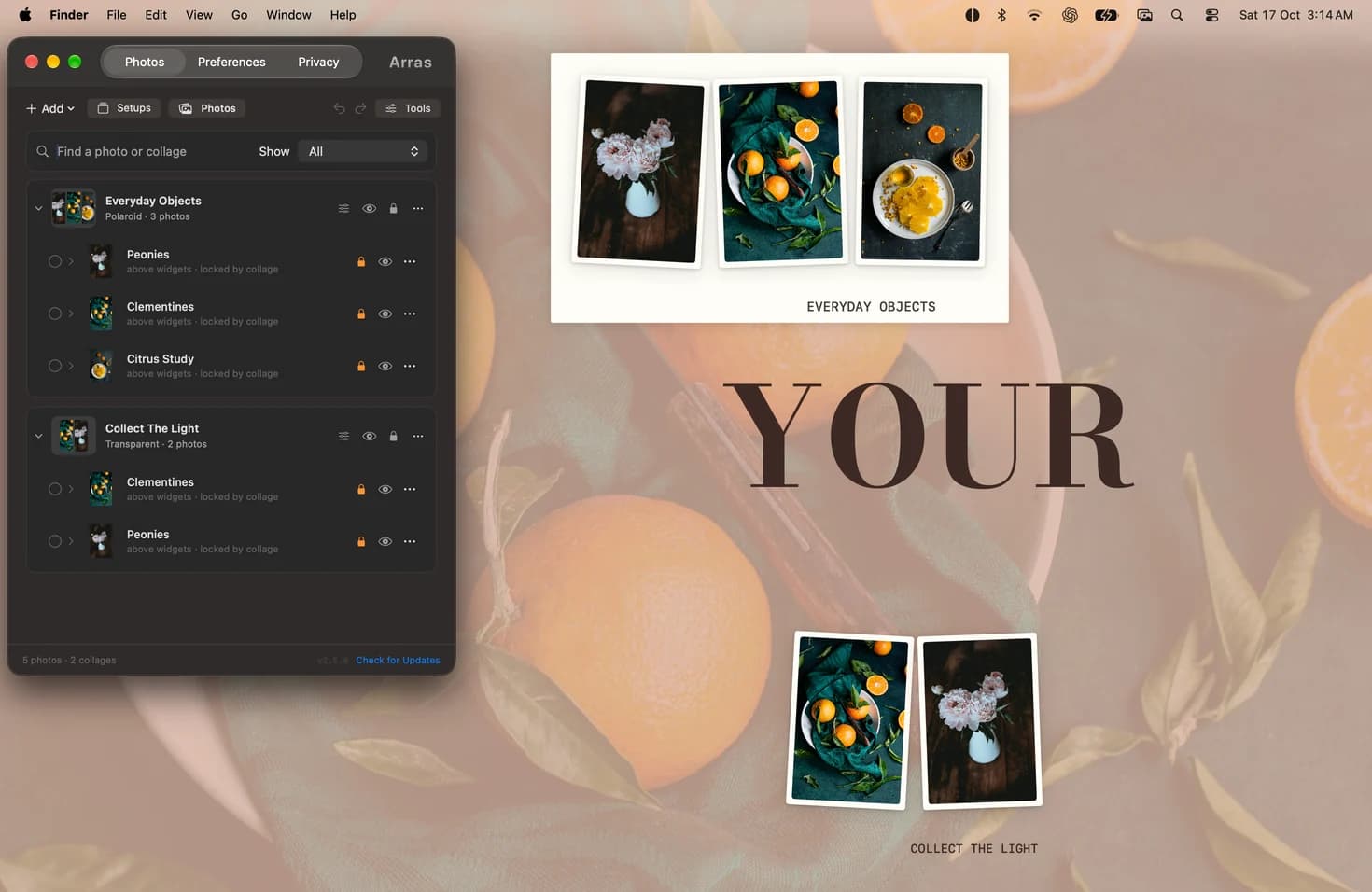
Choose Add → Create Collage in Arras Settings and select the photos you want together. Pick a background, spacing and border, or choose a transparent style. Try an Example provides an editable starting point if you want to see a finished arrangement first.
A desktop collage stays live. Its photos remain independently movable and resizable, rather than becoming one flattened image. Drag the empty background to move the whole group. Drag a photo to rearrange it or move it out of the collage.
Keep the details aligned
Hover a photo’s corner to resize it. Alignment guides help you line up nearby edges, and the collage boundary grows or shrinks as you edit. Add and remove members in Edit Collage. Apply appearance to an individual photo or copy a look between photos without replacing their media.
Add a caption or place a text label inside the collage. Depth and Space pinning belong to the group; a detached photo retains its own standalone settings. Lock the arrangement once it is where you want it.
Keep a version before experimenting
Save a named Setup to return to this desktop later. Arrangement Undo covers movement, resizing and membership changes during the session. Export an .arras backup when you need a portable copy of the layout and its managed media.
Choose the free download or Mac App Store edition →
Arras feature documentation ↗ · Setup questions · Privacy and permissions